Step by Step: How to Set Up and Configure Your Mobile Broadband Router Properly

Step by Step: How to Set Up and Configure Your Mobile Broadband Router Properly
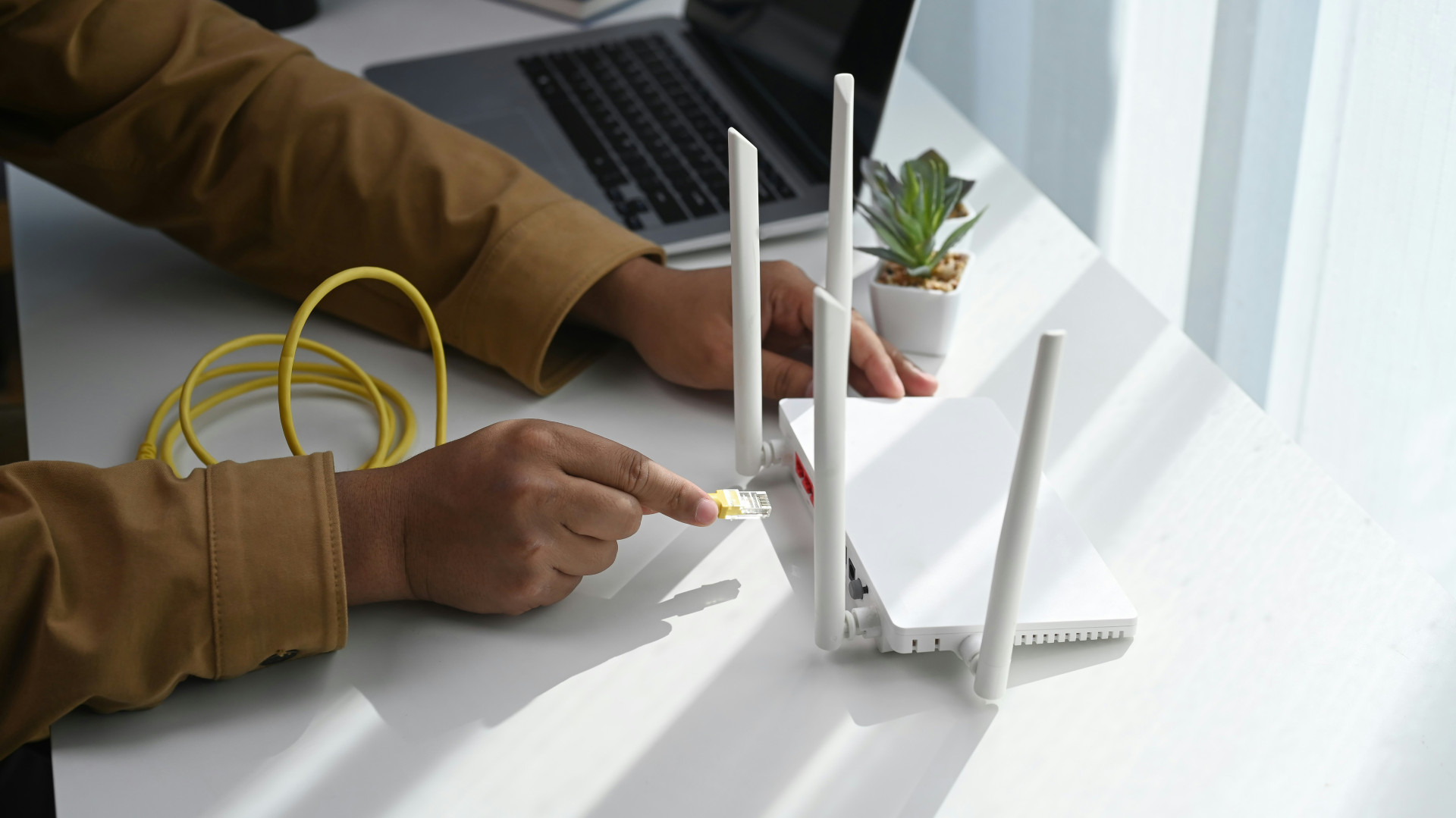
A mobile broadband router is a convenient way to stay connected to the internet without relying on a fixed cable connection—whether you’re traveling, working remotely, or need a backup connection at home. To get the best speed and stability, it’s important to set it up correctly. Here’s a step-by-step guide to help you configure your mobile broadband router for optimal performance.
1. Understand What a Mobile Broadband Router Is
A mobile broadband router uses a SIM card—just like a smartphone—to connect to a cellular network (4G LTE or 5G). It then shares that connection as a Wi-Fi network that your devices can join. This means you can get internet access almost anywhere there’s cell coverage, without needing to install a wired broadband line.
2. Insert the SIM Card Correctly
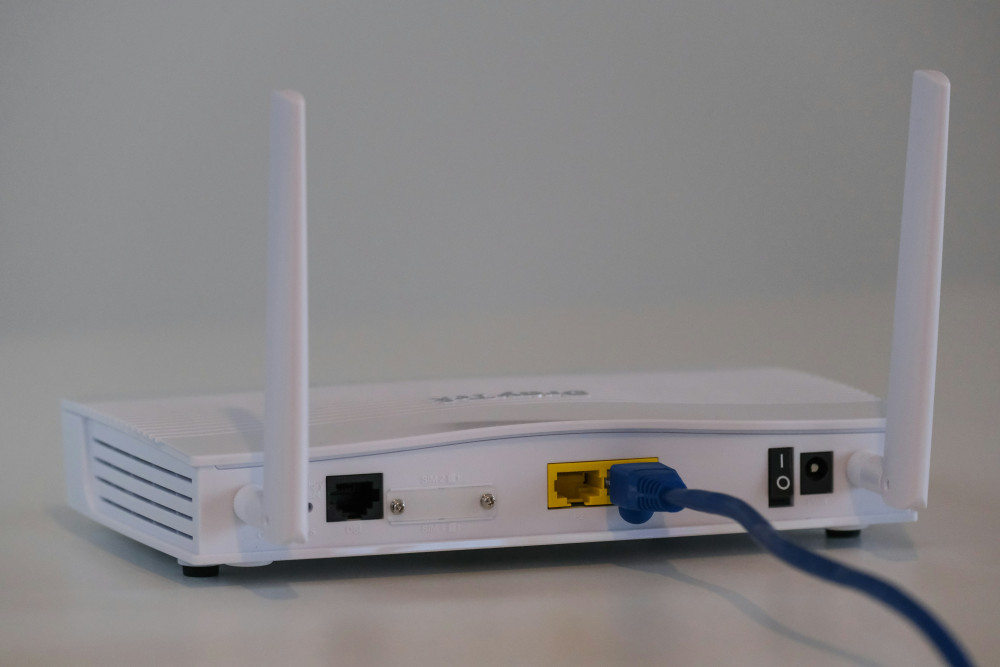
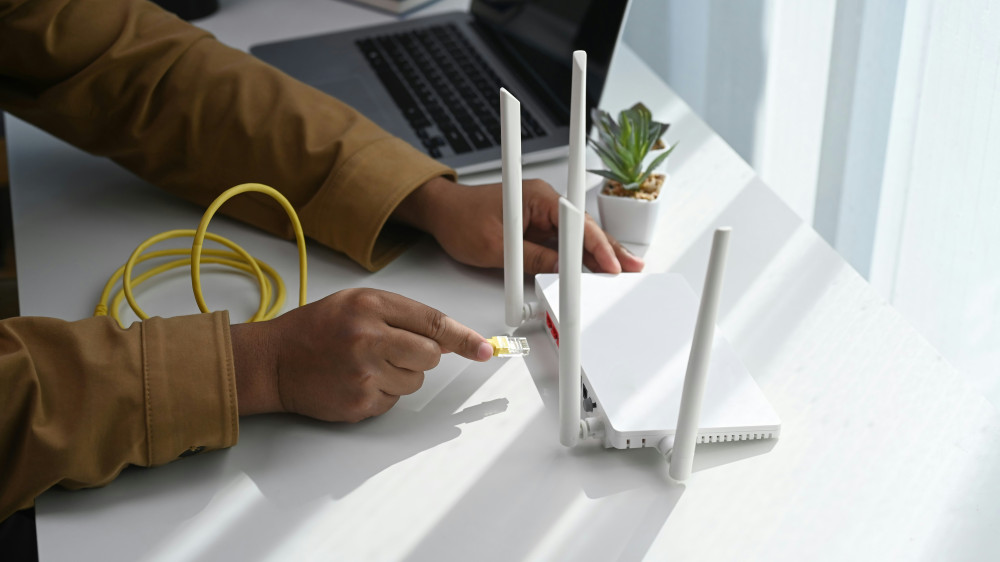
Before inserting the SIM card, make sure the router is turned off. Most routers have a small tray or slot for the SIM card. Insert it in the correct orientation—usually indicated by a small diagram near the slot. Once the SIM card is in place, power on the router. Some models may ask for the SIM’s PIN code the first time you use it.
3. Find the Best Location
Where you place your router can make a big difference in signal strength and speed.
- Position it near a window or an area where your phone shows strong cellular signal.
- Avoid placing it inside cabinets, behind metal objects, or near other electronics that could cause interference.
- If you live in an area with weak coverage, consider connecting an external antenna—many routers have ports for this.
A good tip is to use your smartphone to check signal strength in different spots before deciding on the final location.
4. Connect and Log In to the Router
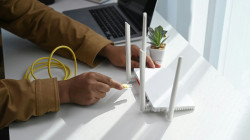
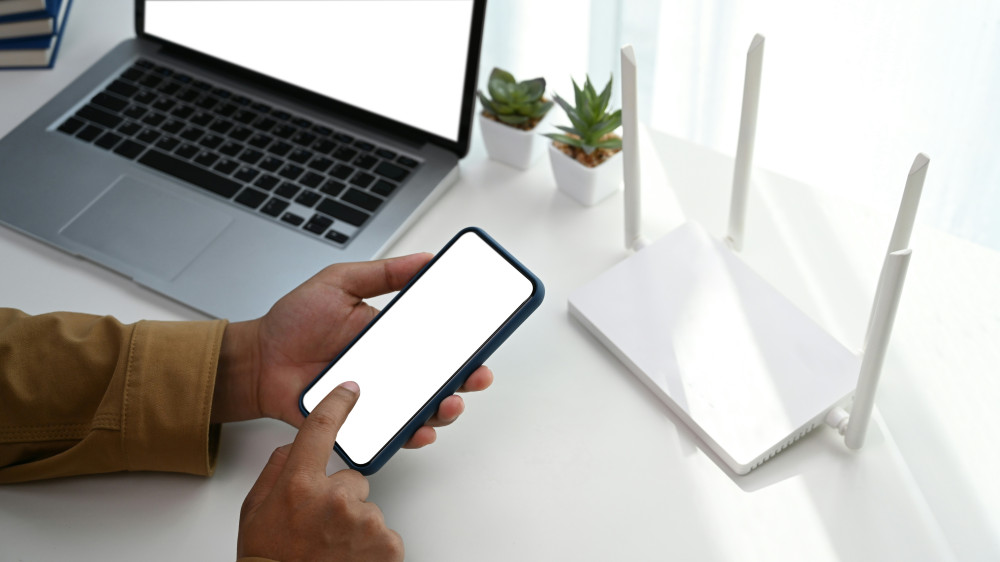
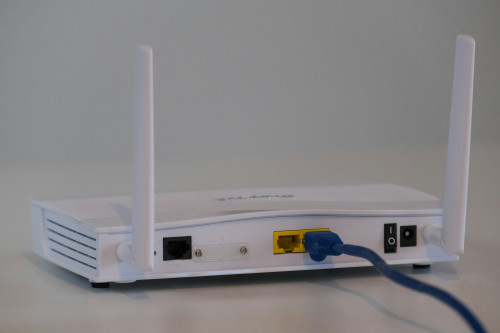
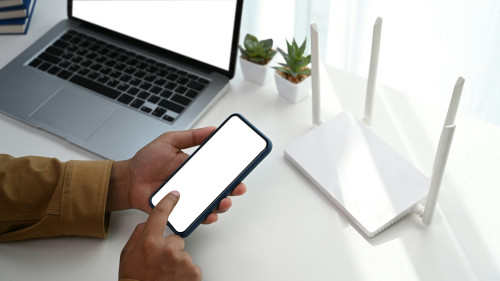
Once the router is powered on, connect your computer or smartphone to it via Wi-Fi. The default network name (SSID) and password are usually printed on a label on the bottom or back of the device. After connecting, open a web browser and type the router’s IP address—commonly 192.168.0.1 or 192.168.1.1—into the address bar. Log in using the default username and password (often both are “admin,” unless otherwise specified by the manufacturer).
5. Configure the Internet Connection
Most routers automatically detect and connect to your mobile network. If that doesn’t happen, you may need to enter the APN (Access Point Name) settings manually. You can find these details from your mobile carrier (for example, Verizon, AT&T, or T-Mobile). Save your changes and restart the router. Once connected, you should see signal strength and data usage information in the router’s admin panel.
6. Change the Wi-Fi Name and Password
For security reasons, it’s best to change the default Wi-Fi name and password. Choose a network name that’s easy to recognize and a strong password that includes letters, numbers, and symbols. This helps protect your network from unauthorized access and makes it easier to manage your connected devices.
7. Update the Router’s Firmware
Manufacturers regularly release firmware updates to improve performance and security. Check your router’s settings menu for available updates and install them if recommended. Keeping your router’s firmware up to date ensures better stability and protection against vulnerabilities.
Læs også:
8. Test the Connection
Once setup is complete, it’s time to test your connection. Open a browser and run a speed test—such as at speedtest.net—to see if you’re getting the expected performance. If the connection seems unstable, try moving the router, restarting it, or checking for firmware updates again.
9. Manage Data Usage and Security
Many mobile broadband plans have data limits. Your router’s admin page often includes tools to monitor data usage so you can avoid overage charges. Enable security features such as a guest network, firewall, and automatic disconnection when idle. These settings help keep your network safe and efficient.
10. Ready to Use—At Home or On the Go
Once configured, your mobile broadband router is ready to provide fast, reliable internet wherever you need it. Many models can run on battery power or USB, making them ideal for road trips, RVs, boats, or vacation homes. With proper setup, you’ll enjoy a stable and flexible internet connection—no matter where life takes you.
Læs også: